Showing posts sorted by relevance for query Mozilla Firefox. Sort by date Show all posts

Friday, 20 July 2012

Mozilla Firefox OS Revealed in Images

Firefox os

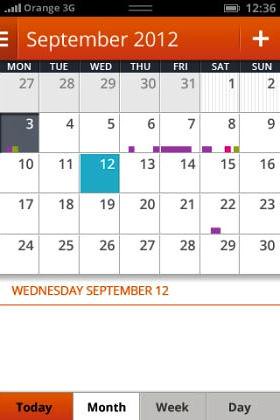
Mozilla's new Firefox OS (earlier known as Boot 2 Gecko) devices aren't set to ship until the beginning of 2013, but new screenshots of Firefox OS surfaced online shows that project coming along nicely. More Firefox OS images after the cut.
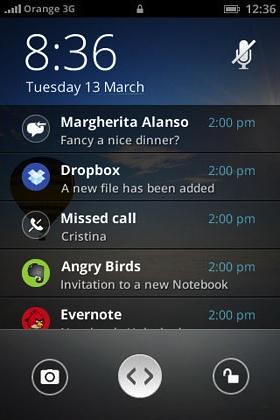
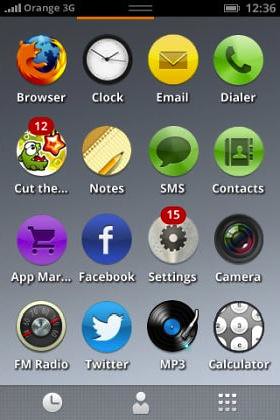
Firefox os notifications firefox os icons

The Firefox OS is intended for low end smartphones, if you look at the screenshots, you will find similarities from other mobile OS like Android, iOS or Windows Phone yet it run apps in HTML 5. The most important thing is that Firefox OS includes everything you would expect from smartphone OS like support for calls, texts, web browsing, calendar, contacts camera and run apps.
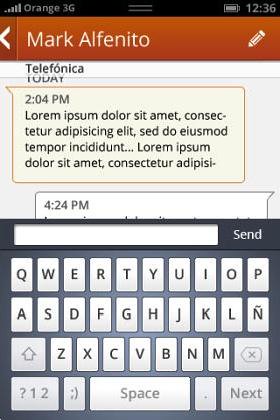

Firefox OS Messages Firefox OS photos

Firefox OS camera  firefox os calendar

Source:- TechWeekEurope

Wednesday, 1 February 2012

Mozilla Firefox 10 now available for Download

Firefox 10

Stable version of Mozilla Firefox 10 is now available for Windows, Mac and Linux users. Mozilla added new features to the latest browser update which includes - the forward button is now hidden until you navigate back, most add-ons are now compatible with new versions of Firefox by default, Anti-Aliasing for WebGL is now implemented and firefox 10 now supports CSS3 3D-Transforms. For developers, Mozilla added IndexedDB APIs to more closely match the specification and new CSS Style Inspector. You can download the Firefox 10 from the link below.

Download Firefox 10

Windows | Mac | Linux | ftp


Tuesday, 20 December 2011

Download Mozilla Firefox 9

Mozilla Firefox 9

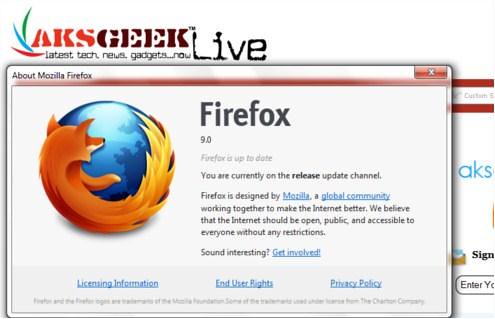
Mozilla Firefox 9 is now available for download. The latest browser update added type inference, support for querying Do Not Track status via JavaScript, two finger swipe navigation for Mac OS X Lion and support for improved HTML5, MathML and CSS.

Download Mozilla Firefox 9

Windows | Mac| Linux | Release notes | ftp


Tuesday, 27 September 2011

Mozilla Firefox 7.0 Released, now Available for Download

Firefox 7.0

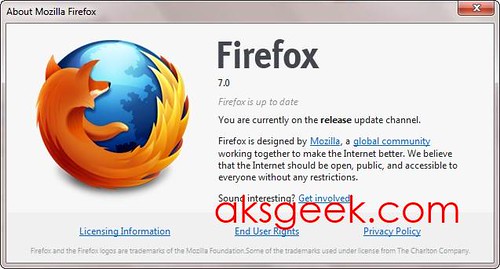
Mozilla today released the Firefox 7.0 for Windows, Mac and Linux and at the same time, the Android mobile version of Firefox was announced, which now lets users copy and paste from websites to destinations outside the browser, such as e-mails and SMS messages.

The latest Firefox 7.0 drastically improves the usage of memory (RAM) which enhanced the Web browsing experience. Users will notice Firefox is faster at opening new tabs, clicking on menu items and buttons on websites and is said to consume 20-30% less memory than former builds of Firefox browser.

Firefox adds opt in Telemetry tool that allows users to provide anonymous browser performance data in a private and secure way that they control.

Download Firefox 7.0 | Release Notes


Wednesday, 21 December 2011

Google and Mozilla Sign new agreement for Firefox Search

Mozilla firefox logo

Mozilla today announced that they had signed significant and mutually beneficial revenue agreement with Google that will last for at least three additional years.

“Under this multi-year agreement, Google Search will continue to be the default search provider for hundreds of millions of Firefox users around the world,” said Gary Kovacs, CEO, Mozilla.

“Mozilla has been a valuable partner to Google over the years and we look forward to continuing this great partnership in the years to come,” said Alan Eustace, Senior Vice President of Search, Google.

This deal is crucial to Mozilla, who starting to look bit shaky as Google’s Chrome overtook Firefox, rumor had it that the organization's revenue sharing deal with the search giant had expired and may not be renewed. Well all those rumors will RIP for at least 3 years.

Source:- Mozilla


Sunday, 19 June 2011

Firefox 5 is now Available for Download; Offical release date June 21st

Firefox 5.0

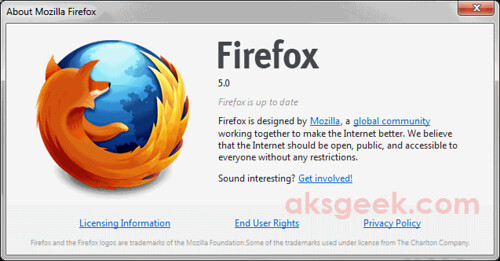
Mozilla Firefox 5 is now available for download via Mozilla’s  ftp servers. Unlike Firefox 4 which went through 12 Beta and 5 RC Build, Firefox 5 taken only 12 weeks after the last re-up. The official release of Firefox 5 is expected to be June 21st. If you want to wait.. you can. If don’t you can download it from the link below.

Download Firefox 5  Windows | Mac | Linux

Monday, 2 July 2012

Mozilla's Firefox OS gains Global Support

Firefox OS

The Firefox OS for mobile devices built on Mozilla's "Boot to Gecko project" has gained support from number of carriers, including Deutsche Telekom, Etisalat, Smart, Sprint, Telecom Italia, Telefonica and Telenor.

Device manufacturers TCL Communication Technology (under the Alcatel One Touch brand) and ZTE today announced their intentions to manufacture the first devices to feature the new Firefox OS, using Snapdragon processors from Qualcomm Incorporated, the leader in smartphone platforms. The first Firefox OS powered devices are expected to launch commercially in Brazil in early 2013 through Telefonica's commercial brand, Vivo.

Tuesday, 29 March 2011

Firefox 4 Now Available for Android

Firefox 4 for Android

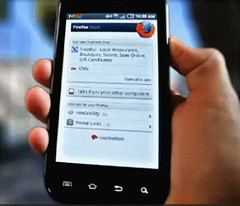
Today, Mozilla release Firefox 4 for Android. Firefox delivers an intuitive interface, unparalleled customization and support for modern Web technologies. To make mobile browsing effortless and fun, Firefox provides seamless and secure access to personal data across desktop and mobile devices, including browsing history, bookmarks, open tabs, form data and passwords.

Firefox for mobile is offered in more than 10 languages.

Android Market | Download For Maemo

Via Mozilla Blog


Friday, 14 April 2017

How to Connect to EC2 Instance using PuTTY and Terminal

1_connect to instanceIn our last post, we learned how to create EC2 instance in AWS. After successfully launching our EC2 Linux instance, today we will connect to our instance so we can install and run WordPress. There are two methods via which we can connect to our Amazon EC2 Linux instance:
  1. A standalone SSH Client
  2. A Java SSH client directly from my browser (Java required)
2_standaloneinstance
Later seems easy to connect as most of the computer have java installed, let's get started and see how to connect our EC2 instance directly from browser.
First check whether you have java installed or your browser supports java or not?
chrome not supportted
All of you have encountered with error/problem while connecting to your instance in Chrome browser as the Chrome browser version 42 and above disabled the standard way their browser supports plugin.
firefox_java not supported
Now it’s Firefox turn: While trying on Mozilla Firefox 64-bit, I got a message saying it is 64-bit and will not run java. Another failed attempt.
win10_edge_java not supported
Our Last hope?: Using Microsoft Edge browser didn’t help either as it doesn’t have support plugin. My bad!
Old is Gold!? While checking for java on internet explorer (IE11), a pop-up window appeared mentioning “the page you are viewing uses java”. Finally a positive response, now it’s time to connect our instance  by
  1. Sign-in to AWS console –> EC2 dashboard-> running instance-> select running instance –> click on Connect button
  2. Select “A Java SSH client directly from my browser (Java required)”
  3. Your username will be mentioned by default as “ec2-user”. Now enter the location of private key path (which you have downloaded in step 7 of creating ec2 instance) C:\folder\location\private_key.pem and select save key location
  4. Now click on “Launch SSH client” button .
IE not connecting


Wait! Nothing happened, the same pop-up appeared and didn’t connect. Looks like IE 11 on 64bit Windows 10 won’t work.

firefox-32bit limited support for plugin

This time around installing and running on  32-bit Firefox, I have had encountered with a different message (gladly) but – Limited support for the plugin, therefore will not run java.  There are other browser options like opera, safari which I didn’t try and leaving up to you to try it using above steps and leave a comment below whether they worked for you or not.

It’s time to go with the first option of connecting instance via standalone SSH client:

Connect to Amazon EC2 Linux Instance using PuTTY

For Windows user
  1. Download PuTTY, PuTTYgen

    PuTTYgen

  2. Open PuTTYgen –> click “Load” button –>  Windows explorer will open browse to the .pem file location (private key that you have downloaded while creating EC2 instance) and select “All Files (*.*)” otherwise you won’t be able to see your .pem –> click “open”

    PuTTYgen_2

  3. Select “save private key”. PuTTYgen warning window appear to ask you to save this key without a passphrase key? If you want to then you may choose otherwise it’s not necessary. In short press “yes” and save the .ppk file.

    PuTTY Alert


    PuTTY_hostname

  4. Now start PuTTY and enter hostname username@public_dns_name. e.g. ec2-user@52.xx.xxx.xxx48 or ec2-user@ec2-xx-xxx-xxx-xxx.us-west-1.compute.amazonaws.com
    (The username may vary depending on which AMI you have installed. You may find this information in example when you click Connect button in console) –> Connection type SSH and port 22

    PuTTY_auth


  5. In Category pane, expand connection, then expand SSH, click on Auth –> Browse your .ppk and click Open.

    PuTTY Alert-auth

  6. If you connect for the first time, PuTTY display security alert –> choose “Yes”.

    puTTY_login_success
  7. Connected!


For Mac OSX/Linux User:


EC2 Connect via Terminal
  1. Open Terminal

  2. Locate your private key (.pem) key. (In my case, private key is in download folder)

    cd ~/Downloads

  3. Your key must not be publicly viewable for SSH to work. Use this command:

    chmod 400 your_privatekey.pem

    or

    chmod 400 /location/private_key.pem

  4. Now connect to your instance using below command:

    ssh -i "your_privatekey_name.pem" ec2-user@ec2-52-xx-xxx-xxx.us-west-1.compute.amazonaws.com You will see message like this:
    The authenticity of host xxx:xxx:xx:xx:xx can't be established.
    RSA key fingerprint is xx:xx:xx:xx:x:xx:xx:xx:xx:xx:xx:xx:xx:xx
    Are you sure you want to continue connecting (yes/no)?


  5. Type Yes and enter

  6. Now you are successfully connected your EC2 Linux instance using Terminal.
On next, we will see how to install WordPress in AWS.

Wednesday, 1 June 2011

Download Free Microsoft Standalone System Sweeper Beta

Microsoft Standalone System Sweeper

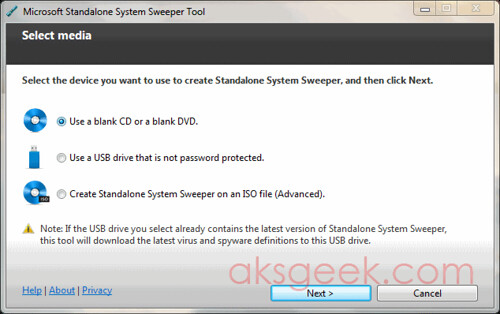
Microsoft released a free security tool called Microsoft Standalone System Sweeper. It helps you start an infected PC and perform an offline scan to help identify and remove rootkits and other advanced malware. In addition, Microsoft Standalone System Sweeper Beta can be used if you cannot install or start an antivirus solution on your PC, or if the installed solution can’t detect or remove malware on your PC.

Microsoft Standalone System Sweeper Beta is not a replacement for a full antivirus solution providing ongoing protection; it is meant to be used in situations where you cannot start your PC due to a virus or other malware infection.

The following requirements apply only to the computer infected by a virus or malware:

  • The computer infected with a virus or malware must have the same Windows operating system architecture as Microsoft Standalone System Sweeper Beta, either 32-bit or 64-bit.
  • In addition, BitLocker must be disabled to use Microsoft Standalone System Sweeper Beta.

The following requirements apply only to the computer on which you are creating the bootable media:

  • Internet connection: Required for installation and download of the latest virus and spyware definitions for Standalone System Sweeper.
  • Internet Browser: Windows Internet Explorer 6.0 or higher or Mozilla Firefox 2.0 or higher.

Download Microsoft Standalone System Sweeper Beta v1.0.856.0

32 bit version v 1.0.856.0 | 64 Bit version v 1.0.856.0

You can also checkout Microsoft Security Scanner

Thursday, 9 June 2011

Motorola’s PHOTON 4G brings 1GHz dual-core NVIDIA Tegra 2 processor

Motorola PHOTON 4G

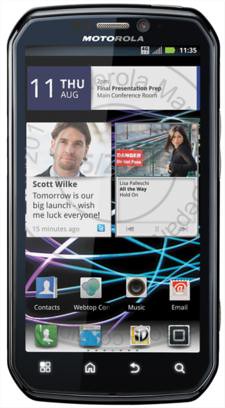
Sprint and Motorola today announced 4.3" qHD touchscreen Motorola PHOTON 4G, Motorola’s first Sprint 4G device with a dual-core 1GHz processor, Android 2.3, Sprint ID and worldphone capabilities.

PRODUCTIVITY:

  • 1GHz dual-core NVIDIATegra2 Processor for quick downloads and app performance
  • 4.3" qHD touchscreen for cinematic viewing with kickstand
  • Built with Android 2.3, Gingerbread operating system
  • International GSM capabilities
  • Enterprise Security
  • 3G/4G Mobile Hotspot capability for up to eight Wi-Fi enabled devices (additional fee required)
  • Corporate (MS Exchange ActiveSync) and personal (POP & IMAP) email access
  • Messaging – personal and business email, Google TalkTM instant message and text messaging
  • Sprint ID offering an innovative way to personalize an Android smartphone with apps, widgets, ringtones and more all in a single download
  • GPS navigation enabled

ENTERTAINMENT:

  • Dual cameras – 8 megapixel HD video capture camera and VGA front-facing camera
  • 720P HD Video capture and the ability to output HD video (1080P) via HDMI
  • Android Market for access to more than 200,000 applications, widgets and games available for download to customize the experience
  • HD Multimedia Dock* and Car Dock* for a truly unique handset experience
  • 16GB of on board memory, support for up to 32GB SD Card, for a total of up to 48GB
  • Ability to utilize the webtop application while connected to a Motorola accessory dock to open, view, edit and send Microsoft Office documents using cloud-based web apps through the full Mozilla Firefox browser
  • Bluetooth 2.1
  • Wi-Fi b/g/n

SPECIFICATIONS:

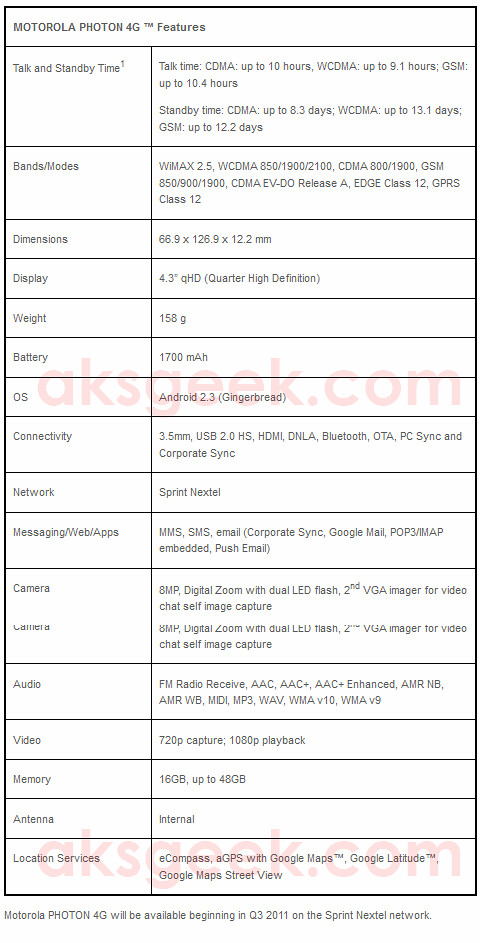
  • Dimensions: 2.6 inches x 5.0 inches x 0.5 inches (66.9mm x 126.9mm x 12.2mm)
  • Weight: 5.6 oz (158 grams)
  • Display: 4.3-inch qHD 540x960
  • Memory: 16GB eMMC ROM/1GB DDR2 RAM
  • Battery Specifications: 1700 mAh Lithium-ion battery
  • Talktime: CDMA: up to 10 hours; WDCDMA: up to 9.1 hours; GSM up to 10.4 hours

*Accessory docks sold separately

UPDATE:

Motorola PHOTON 4G Features